Can you Alt+Tab between Chrome tabs?
Updated 5 November 2026
Short answer: no. Alt Tab switches between windows, and a Chrome window is one window however many tabs it holds. Windows 11 does have a setting that puts browser tabs into Alt+Tab, which is why people ask, but it only works for Microsoft Edge. Here is what Alt+Tab does to Chrome today, what that setting is, the Mac equivalent, and how to get hold-and-release switching between Chrome tabs anyway.
What Alt+Tab does to Chrome today
Microsoft's multitasking page describes Alt+Tab as a way to "quickly switch between open applications in the current desktop": hold Alt, tap Tab to move through the list, and "once you release the Alt key, the selected application will come to the foreground". A quick press and release lands on the window you used before this one.
The list is made of windows. One Chrome window with forty tabs is one entry; two Chrome windows are two. Nothing you do in the tab strip changes what Alt+Tab shows.
Inside Chrome, the keys that move between tabs go by position. Google's Chrome keyboard shortcuts page lists Ctrl Tab (or Ctrl PgDn) as "jump to the next open tab", Ctrl Shift Tab as the previous one, and Ctrl 1 to 8 for a tab by number. "Next" means the tab to the right, not the tab you were last on. That difference, and what to do about it, is the subject of how to switch back to your last tab in Chrome, so it isn't repeated here.
| Keys | Moves between | Order |
|---|---|---|
| Alt Tab | Windows (every app) | Last used first |
| Ctrl Tab | Tabs in this Chrome window | Left to right |
| Ctrl 1…8 | Tabs in this Chrome window | By position |
The Windows setting that only Edge gets
The setting people have in mind is in Settings › System › Multitasking, under the name "Show tabs from apps when snapping or pressing Alt+Tab". Microsoft's page gives two kinds of value: "Don't show tabs", which "allows you to switch only between open windows on the current desktop", and a number of most recent tabs, which adds "a certain number of recent tabs open in the Microsoft Edge browser". The policy version of the same control, documented on Microsoft Learn, spells out the choices as 3, 5 or 20 recent tabs, or windows only, and describes them as Microsoft Edge tabs throughout.
"Tabs from apps" sounds general, but Edge is the only app Microsoft names, and we couldn't find a Windows build, a Chrome version or a flag that adds Chrome's tabs to the list. Even the Microsoft Q&A thread "Unable to switch between Edge tabs using Alt+Tab" is answered entirely on the Edge side, with a browser reset and a new Edge profile. If you use Chrome, the setting changes nothing, whichever value it has.
The one way a Chrome tab gets its own Alt+Tab entry is to make it a window: drag it out of the strip, or use the right-click menu's Move tab to new window. Our guide to moving a Chrome tab to a new window from the keyboard covers that, and how to put it back.
Alt+Tab-style switching inside Chrome
What Alt+Tab gets right is the gesture: hold a key, tap to move through recent things, let go to land. Chrome has no tab switcher like that, but an extension can add one, because an extension can watch the order you use tabs in.
Disclosure: we make Tab Launcher, a free Chrome extension whose recent-tab switcher uses that gesture. It runs on your computer only and doesn't track anything.
- Hold Alt and tap Q. Your recent tabs appear as a row of cards, the tab you were just on first. On a Mac it's ⌥ Q.
- Tap Q again to move along. Each tap selects the next card. Alt Shift Q moves back the other way.
- Release Alt to switch. Press Esc instead to stay where you are. Press W with Alt still held to close the selected tab and keep choosing.
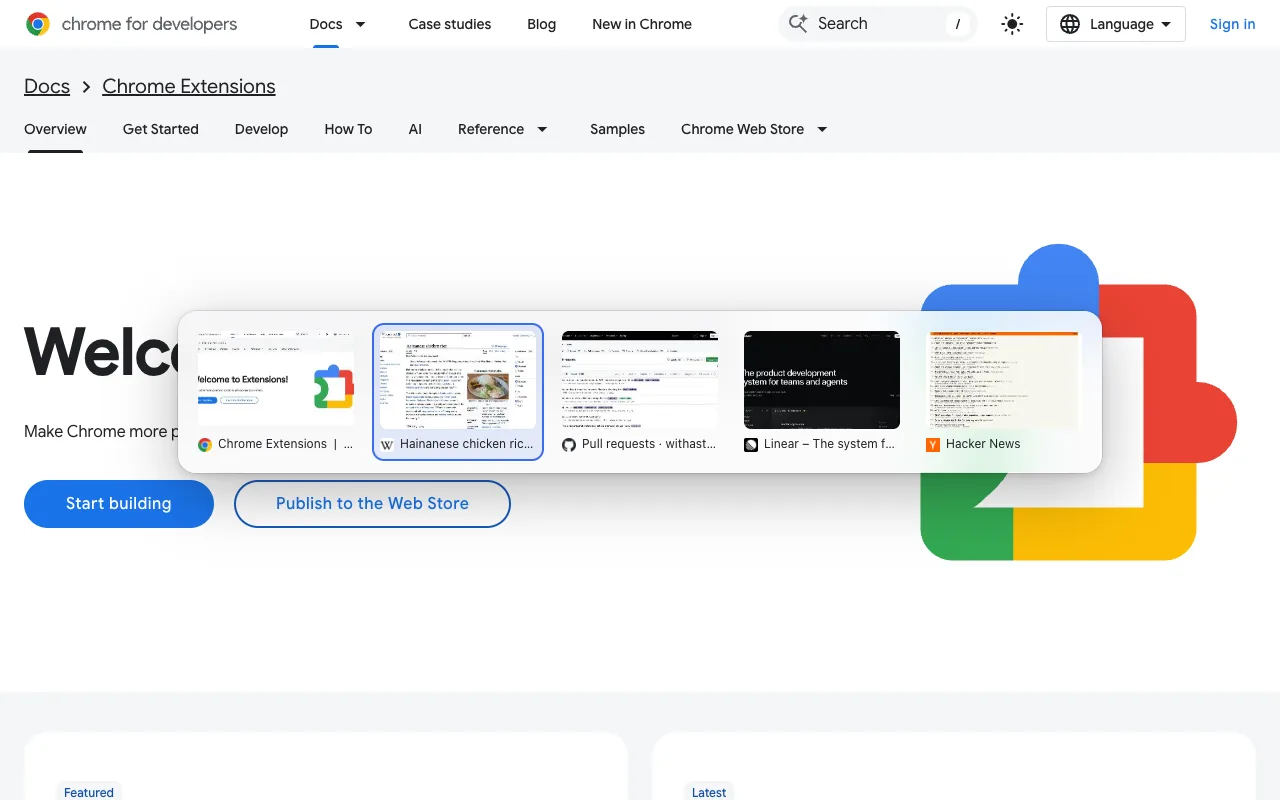
A quick tap of Alt Q, with no hold, jumps straight back to the last tab without drawing the cards, the same as a quick Alt Tab does with windows. If you'd rather the whole thing lived on Ctrl Tab, Chrome's shortcut page refuses that key, but there is a workaround; it's in Chrome extension keyboard shortcuts.
Mac: Cmd+` for windows, and tabs
On a Mac the OS switcher is ⌘ Tab, which Apple's keyboard shortcuts page describes as "switch to the next most recently used app among your open apps". It moves between apps, not windows. For windows there's a second key: ⌘ ` (the grave accent, left of the 1 on most keyboards) will "switch between the windows of the app you're using". With Chrome in front, ⌘ ` walks through your Chrome windows.
Tabs are still invisible to both. A Chrome window with thirty tabs is one stop for ⌘ `, and macOS has no equivalent of the Windows setting above for any browser. Inside Chrome on a Mac, Google's page lists ⌘ ⌥ → and ⌘ ⌥ ← for the next and previous tab, ⌘ 1 to 8 for a tab by number, and ⌘ 9 for the last tab. All by position, as on Windows.
Tab Launcher's switcher is the same on a Mac: hold ⌥, tap Q, release to switch. ⌥ Shift Q goes backwards, Esc cancels, W closes the selected tab.
Across several Chrome windows
With two or three Chrome windows open, the OS and Chrome split the job. Alt Tab on Windows, or ⌘ ` on a Mac, gets you between the windows. Chrome's own keys, and Tab Launcher's Alt Q switcher, work within the window you're in: the cards show that window's tabs, in the order you used them.
To reach a tab in another window from the keyboard, use the command bar instead. Press Alt K (⌥ K on a Mac): open tabs from every Chrome window are listed, most recent first, and a few letters of a title or address narrow them. Enter switches to that tab and brings its window to the front. Chrome's built-in tab search does something similar; the two are compared in how to search your open tabs in Chrome.
Why it can't be Alt+Tab itself
A fair question: if an extension can hold-and-release on Alt Q, why not on Alt Tab? Two rules in Chrome's commands documentation rule it out.
- Tab isn't a key an extension may use. The documentation lists what a shortcut can be made of: the letters A to Z, the digits 0 to 9, Comma, Period, Home, End, Page Up, Page Down, Space, Insert, Delete, the four arrows and the media keys, plus a modifier that "must include either Ctrl or Alt". Tab is not on the list, so neither the extension's manifest nor the field on
chrome://extensions/shortcutswill take it. - The OS gets there first. The same page says that "certain operating system and Chrome shortcuts (e.g. window management) always take priority over Extension command shortcuts and cannot be overridden". Alt+Tab is window management by definition; Windows acts on it before Chrome sees the keys.
The console trick that assigns Ctrl Tab to an extension works because that is Chrome's own shortcut; it has nothing to offer against a key the operating system owns. So the practical answer is a key Chrome will accept as close to Tab as possible. Q is right next to it on the same row, which makes Alt Q the same hand shape as Alt Tab.
FAQ
Can I make Chrome tabs show up in Windows 11's Alt+Tab?
Not with a setting. The only tabs Windows adds to Alt+Tab are Microsoft Edge's; Microsoft's support page for the setting names no other browser, and we found no Chrome setting or flag that joins in. A tab becomes an Alt+Tab entry only when it is its own window: drag it out of the tab strip, or use Chrome's Move tab to new window.
Is there a setting for Chrome's Alt+Tab order?
No. Chrome has no Alt+Tab of its own, and its Ctrl Tab always moves to the next tab along the strip. Nothing in Chrome's settings or chrome://flags changes that order to most recent first. An extension can keep the recent order and switch on it; see how to switch back to your last tab.
Can I put Alt+Tab in the field on chrome://extensions/shortcuts?
No. Chrome's documentation lists the keys an extension command may use: letters, digits, a few named keys such as Home, End, Page Up, Page Down, Space, Insert and Delete, the arrows and the media keys. Tab is not among them, and the same page says operating system shortcuts for window management always take priority and cannot be overridden. The console method that assigns Ctrl Tab doesn't reach Alt Tab either.
Does the Alt+Q switcher work on Chrome's own pages?
Chrome doesn't let extensions draw over its own pages, such as Settings, or over the Chrome Web Store. On those pages Tab Launcher opens its switcher in a small window of its own, so the shortcut still works.