How to switch back to your last tab in Chrome
Updated 5 November 2026
You're reading something, you jump to another tab to check a detail, and now you want to go straight back. In most apps that's Alt Tab or ⌘ Tab. In Chrome, Ctrl Tab takes you to the next tab along the tab strip, which is usually not the one you came from.
Chrome has no built-in "last used tab" shortcut. Here's what it does have, and how to add the missing one.
Chrome's built-in tab shortcuts
| Action | Windows & Linux | Mac |
|---|---|---|
| Next tab (by position) | Ctrl Tab | ⌘ ⌥ → |
| Previous tab (by position) | Ctrl Shift Tab | ⌘ ⌥ ← |
| Tab 1 to 8 | Ctrl 1…8 | ⌘ 1…8 |
| Rightmost tab | Ctrl 9 | ⌘ 9 |
| Reopen the tab you closed | Ctrl Shift T | ⌘ Shift T |
Source: Google's Chrome keyboard shortcuts page.
All of these move by position. "Previous tab" means the tab to the left, not the tab you were last on. Note that Ctrl 9 is the rightmost tab, not the last one you used.
Chrome's tab search
Chrome also has tab search: press Ctrl Shift A (⌘ Shift A on a Mac), click the small arrow at the left end of the tab strip, or type @tabs in the address bar. Then type to find any open tab by title or address. It's handy when you have dozens of tabs, but it's a list to search, not a quick flip back.
Add a real "last tab" shortcut
To flip between the two tabs you're working in, you need an extension, because only extensions can track the order you used tabs in.
Disclosure: I made Tab Launcher, a free extension that does this. It runs entirely on your computer and doesn't track anything.
- Jump back: tap Alt Q (⌥ Q on a Mac) once. You're back on the tab you just left. Tap again to return.
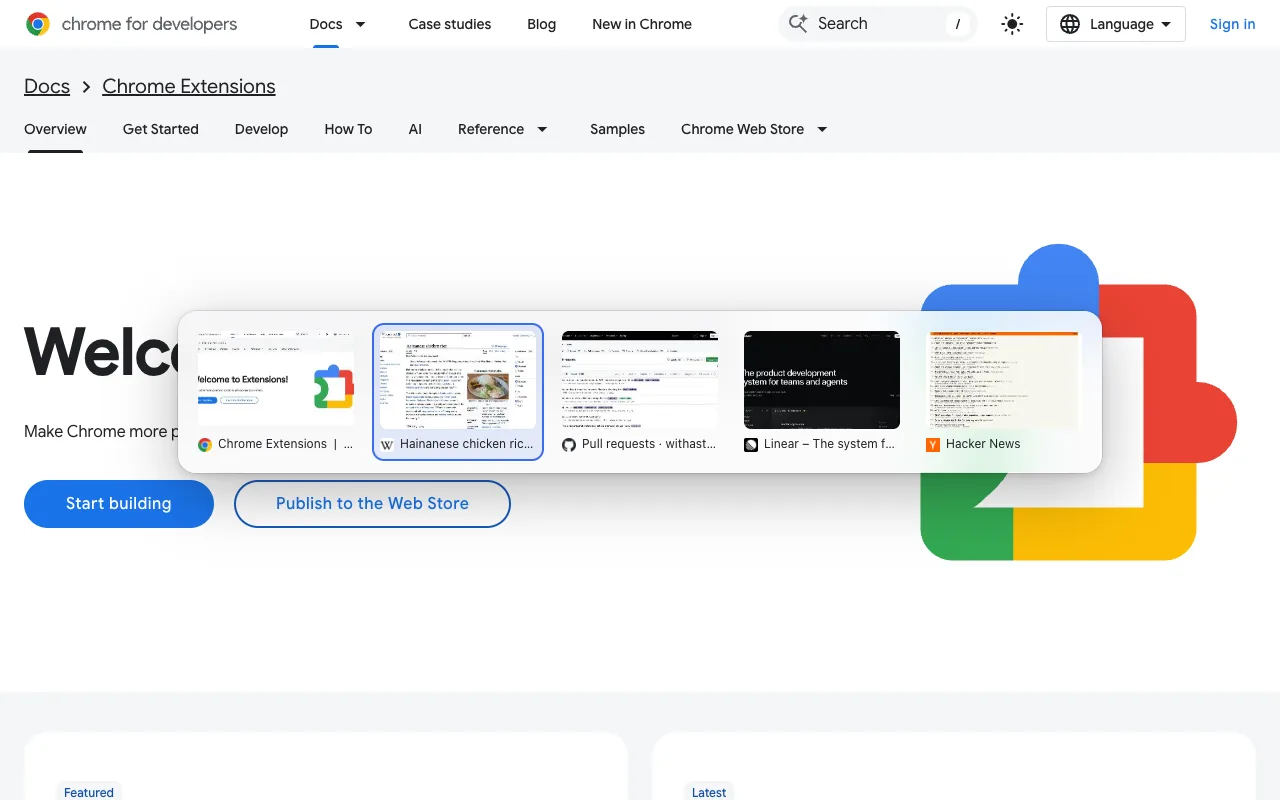
- Go further back: hold Alt and keep tapping Q. Your recent tabs appear as cards in the order you used them. Let go of Alt to switch.
- Find any tab by name: press Alt K and type a few letters. Enter switches to that tab instead of opening a duplicate.
Can I use Ctrl+Tab for this instead?
Chrome doesn't let extensions claim Ctrl Tab when they're installed. You can still assign it yourself:
- Type
chrome://extensions/shortcutsin the address bar and press Enter. - Find the extension's "recent tabs" command and click the pencil icon.
- Press the keys you want. Some combinations are reserved by Chrome and won't be accepted; Tab Launcher's settings page explains a workaround for Ctrl Tab.
FAQ
Is there a Chrome flag for most-recently-used tab order?
Not one you can rely on. Experiments come and go in chrome://flags, and none currently changes Ctrl Tab to recent order.
Does the shortcut work on every page?
Chrome doesn't let extensions draw on its own pages (like Settings) or on the Chrome Web Store. Tab Launcher opens its switcher in a small window there instead, so the shortcut still works.
Do I need to give it access to all websites?
No. The core features work without it. Access to all sites is optional and only needed for tab previews.