Chrome vertical tabs: how to turn them on, every keyboard shortcut, and what's missing
Updated 5 November 2026
Chrome gained built-in vertical tabs in 2026. The tab strip moves to the left of the window, titles are readable, and the list scrolls instead of shrinking. Most questions about it are about keys: how to collapse the panel, whether there's a toggle, and why the option is missing. Here are the answers, checked against Google's help pages and Chrome's source code.
Turn vertical tabs on (and off)
Google's Manage tabs in Chrome page lists four ways in, all setting the same switch: right-click a tab or the empty tab strip; Settings › Appearance › Tab position; the Chrome menu › More tools; or, on a Mac, the View menu, where Show Tabs Vertically is a tick box.
- Move the tabs: right-click an empty part of the tab strip, or any tab, and choose Show tabs vertically. Your tabs move to a panel on the left.
- Make it narrow: press Ctrl Shift L (⌘ Shift L on a Mac) or click the collapse button at the top of the panel. Only the site icons stay. The same key expands it again.
- Go back: right-click a tab and choose Show tabs horizontally, or set Tab position to Horizontal in Settings › Appearance.
Chrome saves the choice in your profile, so it stays vertical across restarts until you change it.
Not showing?
If none of those menus has the option, work down this list.
- Chrome is too old. Google's enterprise release notes list the vertical tab strip under Chrome 147 (April 2026) for Windows, Mac and Linux, and Chrome 148 for ChromeOS. Open the Chrome menu › Help › About Google Chrome, which checks for an update and offers a Relaunch button. An update that downloaded but never relaunched doesn't count.
- It was a gradual rollout. Google's notes say the feature "rolls out gradually", and some people on Chrome 147 didn't see it on day one. Older guides tell you to force it from
chrome://flags; that flag was removed in Chrome 154 (September 2026), so there's nothing to force any more. Update, relaunch, and look again. - The browser is managed. Type
chrome://managementin the address bar. A work or school browser can be held on an older version or have settings fixed by an administrator. - You right-clicked the page. The page's own menu never has the option. Right-click a tab, or use Settings › Appearance.
- You're on a phone. This is a desktop feature. Chrome for Android has an experiment in its source, but nothing to turn on yet.
Every shortcut that works with vertical tabs
Moving the strip doesn't change a single tab shortcut. They all still work, and they still count by position: "next" is the tab below, "previous" the tab above, and Ctrl 9 is the bottom of the list. The list is from Google's Chrome keyboard shortcuts page, plus two Google documents elsewhere.
| Action | Windows & Linux | Mac |
|---|---|---|
| Next tab (down) | Ctrl Tab or Ctrl PgDn | ⌘ ⌥ → |
| Previous tab (up) | Ctrl Shift Tab or Ctrl PgUp | ⌘ ⌥ ← |
| Tab 1 to 8 from the top | Ctrl 1…8 | ⌘ 1…8 |
| Bottom tab | Ctrl 9 | ⌘ 9 |
| New tab | Ctrl T | ⌘ T |
| Close tab | Ctrl W or Ctrl F4 | ⌘ W |
| Reopen the tab you closed | Ctrl Shift T | ⌘ Shift T |
| Move tab up or down | Ctrl Shift PgUp / PgDn | Ctrl Shift PgUp / PgDn |
| Search open tabs | Ctrl Shift A | ⌘ Shift A |
| Collapse or expand a tab group | Space or Enter on the group header | Space or Enter on the group header |
| Collapse or expand the vertical strip | Ctrl Shift L | ⌘ Shift L |
Tab search lists every open tab in every window and filters as you type; its three forms are in how to search your open tabs in Chrome.
Collapse and expand from the keyboard
The key is Ctrl Shift L on Windows and Linux, and ⌘ Shift L on a Mac. One press collapses the panel to a column of site icons; the next expands it. It's a toggle, so there's no separate expand key.
Its status, since reports have been mixed: it appeared in Chrome Canary in July 2026, as the Chromium watcher Leopeva64 and PiunikaWeb reported. In Chrome's source it has been in the shortcut table since version 151, and the strip's right-click menu reads "Collapse tabs (Ctrl+Shift+L)". Google's shortcuts page doesn't list it yet, which is why so many guides say there's no key. If it does nothing for you, check that your tabs are actually vertical: the command only exists in that layout.
The button at the top of the panel does the same with the mouse. Right-click it for Expand collapsed tabs by hovering: the panel stays narrow and opens when your pointer rests on it. In the collapsed panel, hovering a tab or group shows its full title.
What there isn't is a key that flips between vertical and horizontal. On a Mac you can add one: System Settings › Keyboard › Keyboard Shortcuts › App Shortcuts, add one for Google Chrome, type the menu title Show Tabs Vertically exactly, and press the keys you want. The View menu item is a tick box, so the same key turns it off again. Apple's help page has the steps. Windows and Linux have no equivalent.
What vertical tabs don't fix: finding the tab you just left
A vertical strip shows more tabs, with titles, so it's easier to see where things are. But every shortcut above still moves by position. Jump from tab 3 to tab 14 to check something, and the way back is Ctrl Shift Tab eleven times, or a look down the list and a click. Chrome has no "last used tab" key, in either layout.
Disclosure: we make Tab Launcher, a free Chrome extension that adds that key. It runs on your computer only and doesn't track anything.
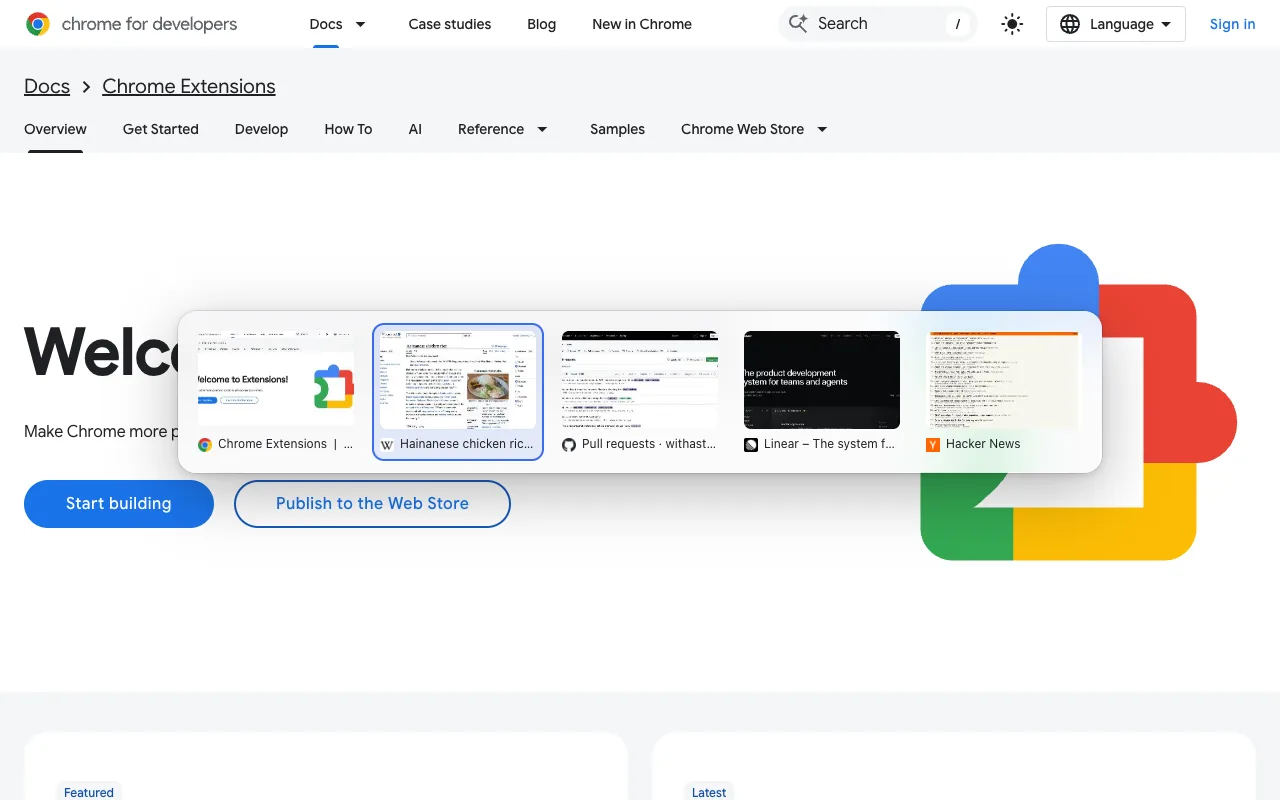
Tap Alt Q (⌥ Q on a Mac) once and you're back on the tab you just left; tap again to return. Hold Alt and keep tapping Q and your recent tabs appear as cards in the order you used them. Let go to switch. Esc cancels, and W closes the selected card. The order is by use, not position, so it doesn't matter whether the tab is at the top of the panel or far below the fold.
More on why Chrome lacks this key is in how to switch back to your last tab in Chrome.
Vertical tabs vs a keyboard switcher: use both
They do different jobs. The vertical strip is a map: what's open, grouped and in order. A keyboard switcher is for the two or three tabs you're working in right now. The extension draws its own cards over the page, so it works the same in either layout.
A setup that works well: tabs vertical, panel collapsed with Ctrl Shift L so the icons stay in view, Alt Q to flip between recent tabs, and Alt K to type a few letters of a title when the tab you want is further back. Expand the panel when you need the map. If you'd rather have the switcher on Ctrl Tab, Chrome's shortcuts page won't accept that key, but Chrome extension keyboard shortcuts shows the way round it.
FAQ
Is there a shortcut to toggle vertical tabs on and off?
Not a built-in one. Ctrl Shift L collapses and expands the vertical strip, but switching between vertical and horizontal is a menu item with no key. On a Mac you can give it one yourself: System Settings › Keyboard › Keyboard Shortcuts › App Shortcuts, add one for Google Chrome with the menu title Show Tabs Vertically, typed exactly. On Windows and Linux, right-click a tab and choose the layout.
Do tab groups work with vertical tabs?
Yes. Groups work the same way in both layouts: right-click a tab and choose Add tab to group, and click the group's name or colour to collapse or expand it (Space or Enter does the same on a focused group header). Google's help page says vertical tabs make groups easier to manage, and in the collapsed strip hovering a group shows its full name.
Why did my tabs go back to horizontal?
The choice is a single setting saved in your Chrome profile, so a different profile, a new profile or a Guest window shows horizontal tabs again. If it changed in the profile you were using, right-click a tab and choose Show tabs vertically. If the option itself is gone, see the section on vertical tabs not showing: an old version or a managed browser is the usual cause.