Chrome tab search button missing or moved? Here's where it is now
Updated 5 November 2026
You reach for the little arrow that lists your open tabs, and it isn't there. Chrome has moved the tab search button twice in two years, and a recent version added a way to hide it. Nothing is broken, and the feature itself hasn't gone anywhere. This guide shows where the button lives in current Chrome, how to put it back or get rid of it, and the keyboard routes that work no matter what the toolbar looks like.
Where the tab search button is in current Chrome
Google's Manage tabs in Chrome help page describes the current layout: the tab search button is in the tab strip, it's on by default, and it's "automatically pinned" there. If you use vertical tabs, it's in the vertical strip instead. Recent reports and a Chromium bug thread place it at the left end of the tab strip, next to your pinned tabs.
That's the third home for the button. The short history:
| When | Where the button was |
|---|---|
| 2020 to early 2025 | A small downward arrow in the tab strip, beside the new-tab button on the right for most people. Some 2023 and 2024 versions put it on the left and offered a Tab search position setting under Appearance. Most older articles describe one of these layouts. |
| Chrome 136, May 2025 | A button in the toolbar, next to the address bar and past your extension icons. It could be pinned or unpinned from the toolbar's settings (9to5Google). |
| Mid 2026 onwards | Back in the tab strip, at the left. Google's help page now calls it pinned in the tab strip, and Chrome gained a setting to hide it. |
Which layout you have depends on your version. Type chrome://settings/help in the address bar to see it. Chrome updates itself, so the button can move without you touching anything, which is why "it was on the right yesterday" is such a common complaint.
Show it or hide it
If the button is gone, it was probably unpinned, either by you, by someone sharing the profile, or by an accidental right-click. The steps below come from Google's help page and from Chrome's own settings and menu text.
- To hide it: right-click the tab search button and choose Unpin. You can also right-click an empty part of the tab strip and choose Unpin tab search. The button disappears at once.
- To show it again: type
chrome://settings/appearancein the address bar, press Enter, and turn on Show tab search button. The same right-click menu on the tab strip offers Pin tab search. - If the button is in your toolbar instead (the Chrome 136 layout), right-click it and choose Toolbar settings. That opens the Customize Chrome side panel, where toolbar buttons are pinned and unpinned.
There's no setting for which side it sits on. The Tab search position option that some earlier versions had is gone, and Google doesn't plan to bring it back (see the FAQ).
The shortcut that always works
Whatever the button is doing, the keyboard shortcut hasn't changed since tab search arrived. Press Ctrl Shift A on Windows, Linux or ChromeOS, or ⌘ Shift A on a Mac. The tab search panel opens with your open tabs listed and the cursor in the search box. Type part of a title or address, use the arrow keys, and press Enter to switch. Google lists both combinations on the Manage tabs page.
If you only remember one thing from this guide, make it that shortcut. It works with the button pinned, unpinned or in the toolbar.
Find a tab without the button (three ways)
All three are built into Chrome and none depends on where the button is.
- Ctrl+Shift+A. The shortcut above. It's the same panel the button opens, so you lose nothing.
- Type @tabs in the address bar. Click the address bar (or press Ctrl L / ⌘ L), type
@tabs, press Space or Tab, then type a few letters. Suggestions are now limited to your open tabs. You can also pick Search tabs from the suggestions instead of typing the prefix. - Just type in the address bar. When you type something that matches a tab you already have open, Chrome adds a Switch to this tab option to the suggestion. It's mixed in with history and search results, so it's the least precise of the three, but it needs no prefix at all.
For a closer look at each, including what they can't do, see how to search your open tabs in Chrome.
If Ctrl+Shift+A does nothing
When the shortcut opens nothing, work through these in order.
- An extension took the key. Type
chrome://extensions/shortcutsin the address bar and look for Ctrl Shift A in any field. Click the pencil next to it and press Backspace to clear it, or give that extension a different key. More on how extension shortcuts clash in Chrome extension keyboard shortcuts. - Another app has it as a global hotkey. Screen recorders, launchers and clipboard tools sometimes claim system-wide keys. Quit the likely suspect and try again.
- The page is holding the keyboard. A remote desktop session or a web app that captures shortcuts can take the key before Chrome sees it. Click the address bar first, then press the shortcut, or use
@tabs. - It's a managed browser. On a work or school machine, extensions installed by your administrator can own the key and you can't clear them. The address bar routes still work, and so does the button if it's pinned.
A search bar that opens on any page
Disclosure: we make Tab Launcher, a free Chrome extension. It runs on your computer only and doesn't track anything.
If you'd rather not depend on a button that moves, a command bar extension gives you one key that opens the same kind of list anywhere. With Tab Launcher, press Alt K (⌥ K on a Mac) on any page and a search bar opens over it. Your open tabs from every window are listed, most recently used first, so the tab you want is often already selected before you type. Enter switches to it instead of opening a duplicate. If nothing matches, Enter searches the web or opens the address you typed.
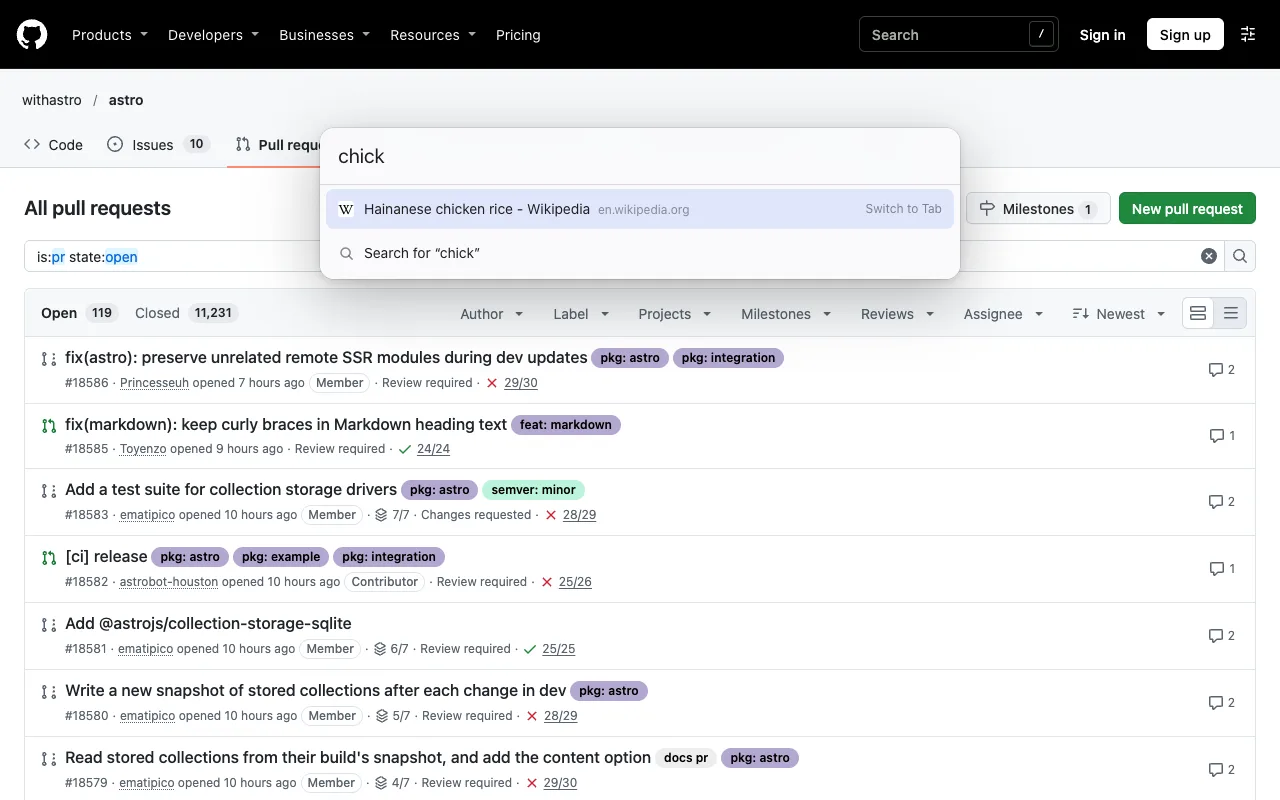
On pages where Chrome doesn't let extensions draw, like Settings or the Chrome Web Store, the bar opens in a small window of its own, so the key still works. And because it's an extension shortcut, you can change it on chrome://extensions/shortcuts if Alt K clashes with something else. Hold Alt and tap Q to flip back to your last tab without searching at all.
FAQ
Did Chrome remove tab search?
No. The feature is still there and Ctrl Shift A (⌘ Shift A on a Mac) still opens it. Only the button has moved, or has been unpinned. Turn on Show tab search button under Settings › Appearance to get it back.
Why is the button somewhere else now?
Google has redesigned the tab strip and toolbar several times. The button started as a small arrow beside the new-tab button, moved into the toolbar next to the address bar in 2025, and now sits in the tab strip. Each move came with a Chrome update, so it can change without you doing anything.
Can I move it back?
Not in current Chrome. In June 2026 a Google engineer closed a request to put the button back on the right as intended behaviour, and said the position setting "has been replaced with the ability to unpin the button". Your choices are to keep it where it is, hide it, or use the keyboard.
Does it list tabs in other windows?
Yes. Chrome's tab search lists open tabs from every normal window of the same profile, and the Open Tabs list is followed by recently closed tabs. Incognito windows are kept separate.