Copy the current URL in Chrome from the keyboard
Updated 5 November 2026
Chrome has no single key that copies the address of the page you're on. It has something nearly as quick: a key that selects the address, then the ordinary copy key. That gets you the bare URL. For the page's title as well, or a ready-made Markdown link, Chrome has nothing built in, and a bookmarklet or an extension fills the gap. This guide covers each case, with what's on Google's shortcut list and what isn't.
The built-in way (two keys)
Google's Chrome keyboard shortcuts page lists three keys for "jump to the address bar" on Windows and Linux: Ctrl L, Alt D and F6. On a Mac it's ⌘ L. Each one puts the cursor in the address bar with the whole address selected, so the copy key does the rest.
- Select the address: press Ctrl L (or Alt D, or F6) on Windows and Linux, ⌘ L on a Mac.
- Copy it: press Ctrl C (⌘ C on a Mac). The address is on your clipboard.
Two details worth knowing. If you had started typing in the address bar, press Esc first so the box shows the page's real address again before you select it. And Chrome trims the front of the address it displays, but the copy is the full address. In Chrome's source, the code that prepares text copied from the address bar puts the current page's complete URL on the clipboard whenever the selection starts at the beginning of the field and you haven't edited the text; a selection that starts partway along is copied as shown. So if a paste ever looks short, check that the entire box was highlighted.
The same two keys are the first half of a few other tricks: Alt D then Alt Enter opens the page in a second tab, which is covered in Chrome duplicate tab shortcut.
Copy from the share menu
Chrome also has a share menu for the current page. Google's release notes introduced it as a share icon in the address bar, with "a variety of options to share the link with others or yourself for later". Google's current Share tabs in Chrome help page reaches the same options through the Chrome menu, under Cast, save, and share, and describes two of them: Send to your devices and Create QR code. Write-ups by others also list a Copy link entry. The icon's position and the menu wording have changed between Chrome versions, so look at the right end of the address bar first and in the Chrome menu if it isn't there.
It's a mouse route. There's no key for the share icon; from the keyboard you'd press Alt F ("open the Chrome menu" on Google's list) and arrow down, which is slower than Ctrl L, Ctrl C. On a Mac one built-in shortcut does package the address up: ⌘ Shift I, "compose a new email message with a link to the current page". It opens your mail app rather than the clipboard, so it only helps if email was the destination.
Copy as a Markdown link
A Markdown link is the title in square brackets followed by the address in parentheses: [Page title](https://example.com/page). Pasted into a note app, a README, a GitHub comment or anything else that reads Markdown, it turns into a link with the page's name on it. Chrome can't produce one. The address bar knows the URL but not the title, and no built-in command joins the two.
Disclosure: we make Tab Launcher, a free Chrome extension with a command bar that has this action. It runs on your computer only and doesn't track anything.
- Open the bar: press Alt K (⌥ K on a Mac) on the page you want to copy.
- Show the actions: press Tab while the bar is empty. The list switches to actions. Typing
/first does the same. - Pick one: type
markand press Enter for Copy URL as Markdown. The clipboard now holds[Page title](address). For the bare address, typecopyand choose Copy URL instead.
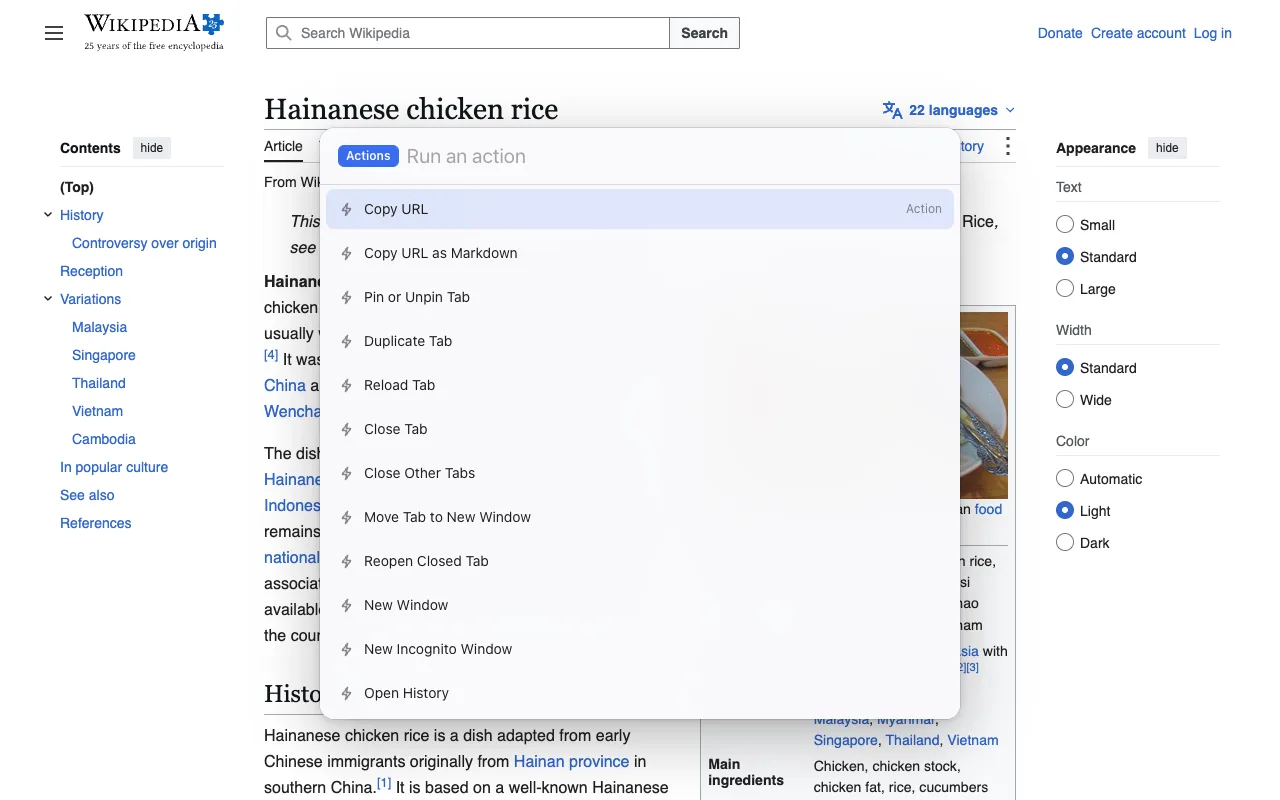
Four presses rather than two, and the bar hands focus back to the page afterwards. The title goes in as Chrome reports it, except that square brackets get a backslash so they can't break the link. The same bar switches tabs and runs the other actions; its shortcut can be changed at chrome://extensions/shortcuts, with the rules in Chrome extension keyboard shortcuts.
Without an extension: a bookmarklet. A bookmark whose address is a line of JavaScript can read the page's title and address and build the link. The catch is the clipboard. By the rules in MDN's Clipboard API notes, a Chromium browser lets a page write to the clipboard only with a clipboard-write permission or a recent interaction with the page, and a click on the bookmarks bar isn't a click on the page, so a bookmarklet that calls the clipboard directly can be refused. The dependable version doesn't touch the clipboard at all: it shows the text in a prompt box with it selected, and you press Ctrl C yourself.
javascript:prompt('Copy:', '[' + document.title.replace(/[[\]]/g, '\\$&') + '](' + location.href + ')')Make a new bookmark, paste that as its address, and click it on any page. Three steps instead of a shortcut, but nothing to install. Bookmarklets don't run on Chrome's own pages or the Chrome Web Store.
Copy title and URL together
Not everything reads Markdown. For a chat message, an email or a plain document, people usually want the title and the address as text, on one line or two. The Markdown link still pastes fine there, since it reads as text and the address is intact. For the two parts without the brackets, change the bookmarklet to put them on separate lines:
javascript:prompt('Copy:', document.title + '\n' + location.href)Tab Launcher's two copy actions give the bare address and the Markdown form; it has no title-and-URL-as-text action, so for that format use the bookmarklet or an extension made for it. One related case with no keyboard answer is a link to a particular passage: Chrome's right-click menu on selected text has "Copy link to highlight", described on Google's Share or link to quotes & text page, and it is mouse-only.
Copy every open tab's URL
Chrome has no command that copies the addresses of all your tabs, and Tab Launcher doesn't add one. The closest thing on Google's shortcut list is Ctrl Shift D (⌘ Shift D on a Mac), "save all open tabs as bookmarks in a new folder". From there Google's bookmarks help page describes exporting: open the Bookmark Manager, choose More, then Export Bookmarks, and "Chrome exports your bookmarks as an HTML file". That file holds every address and title, along with all your other bookmarks, so it suits an occasional backup rather than a daily copy. For a regular need, extensions built for exactly that exist; check what permissions they ask for.
FAQ
Is there a one-key shortcut to copy the URL in Chrome?
No. Google's shortcut list has keys that select the address (Ctrl L, Alt D, F6 on Windows and Linux, ⌘ L on a Mac) but none that copies it, so the built-in route is always two presses: select, then copy. Chrome has no editor for its own shortcuts on Windows or Linux, so you can't add one; on a Mac, System Settings can attach a key to a menu item, but Chrome has no Copy URL menu item to attach it to.
Does the Markdown action change anything in the title?
Only square brackets. A title such as [Draft] Notes would break the link syntax, so each [ or ] in the title gets a backslash in front of it. Everything else in the title and the URL is copied as is.
Can I give Copy URL its own key?
Not in Tab Launcher's current version: its shortcuts are the command bar, the address editor and the two recent-tab switcher commands, and the copy actions are reached through the bar. Alt K, Tab, copy, Enter is four steps, and the same four steps run any other action.
Does it work on Chrome's own pages, like Settings?
Chrome doesn't let extensions draw over its own pages or the Chrome Web Store, so on those pages the bar opens in a small window of its own. The actions still apply to the page behind it, so Copy URL puts that page's address on the clipboard.